
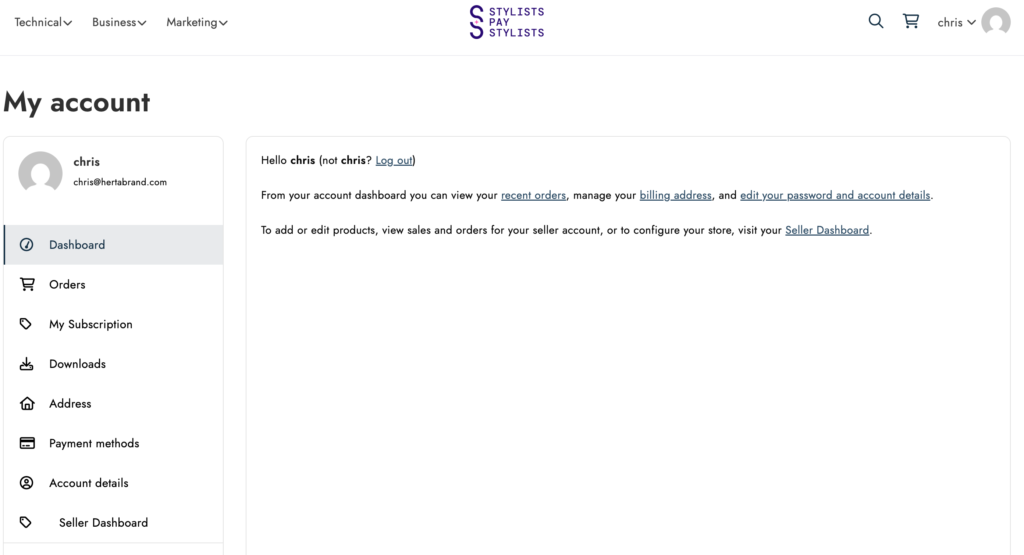
1. Log in to your Seller Dashboard
-
Log in with your seller credentials
-
Navigate to Seller Dashboard
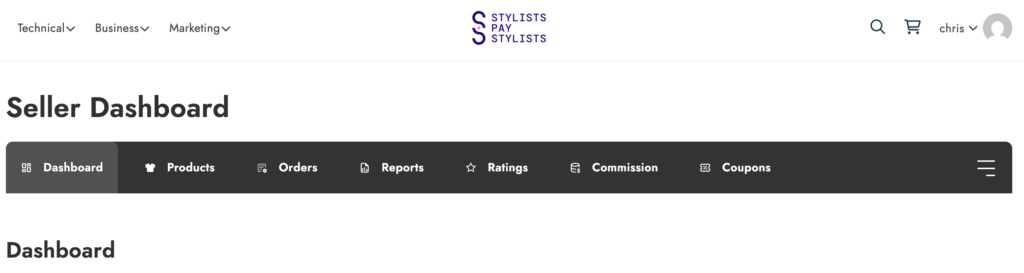
2. Navigate to Dropdown Menu/Go to Settings
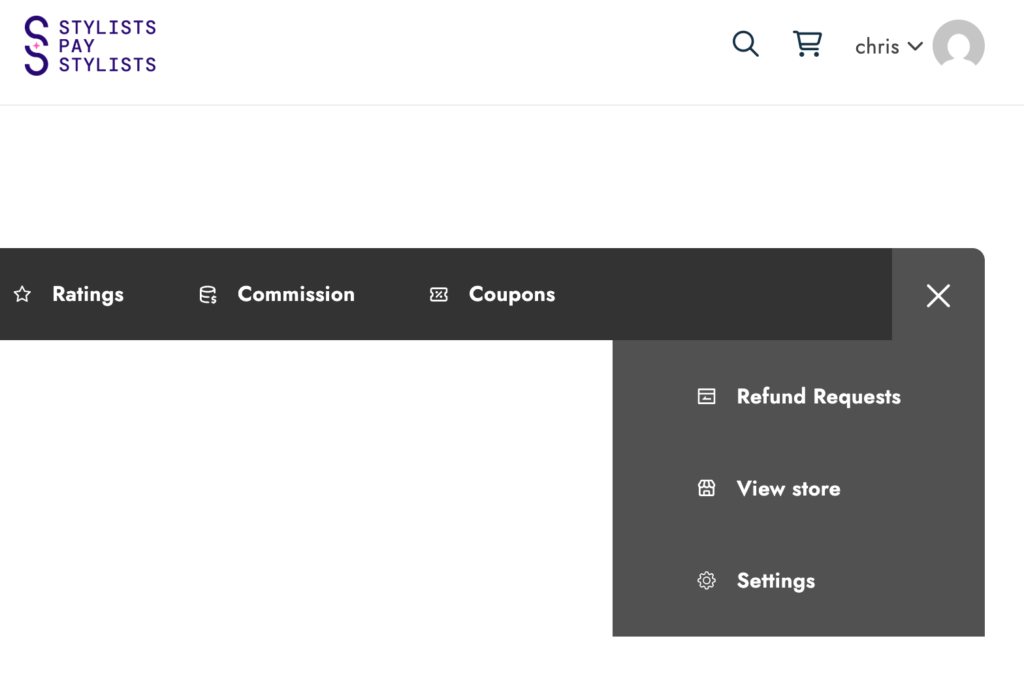
- Drop down menu located to far right of navigation bar under the 3 lines/hamburger menu.
- Select Settings under the dropdown menu:
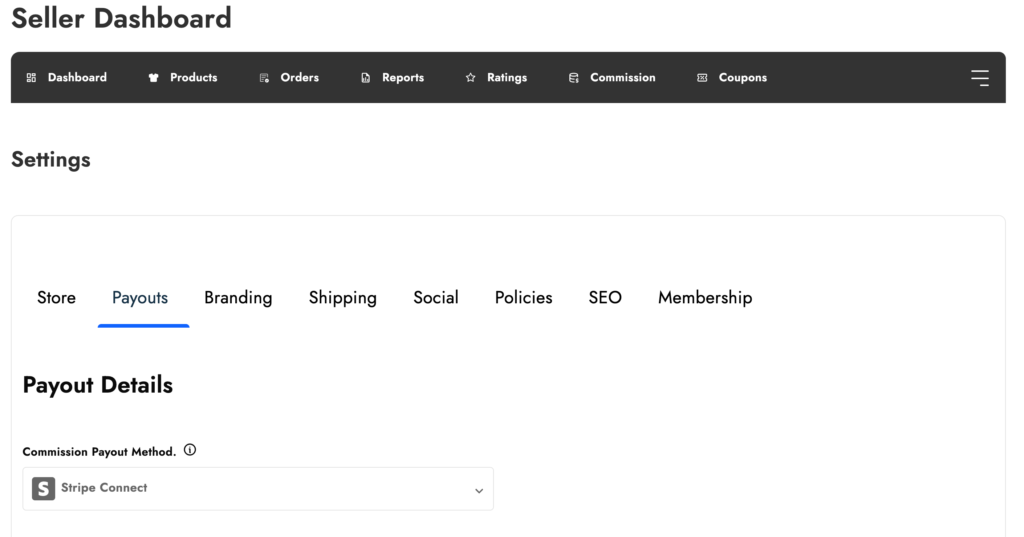
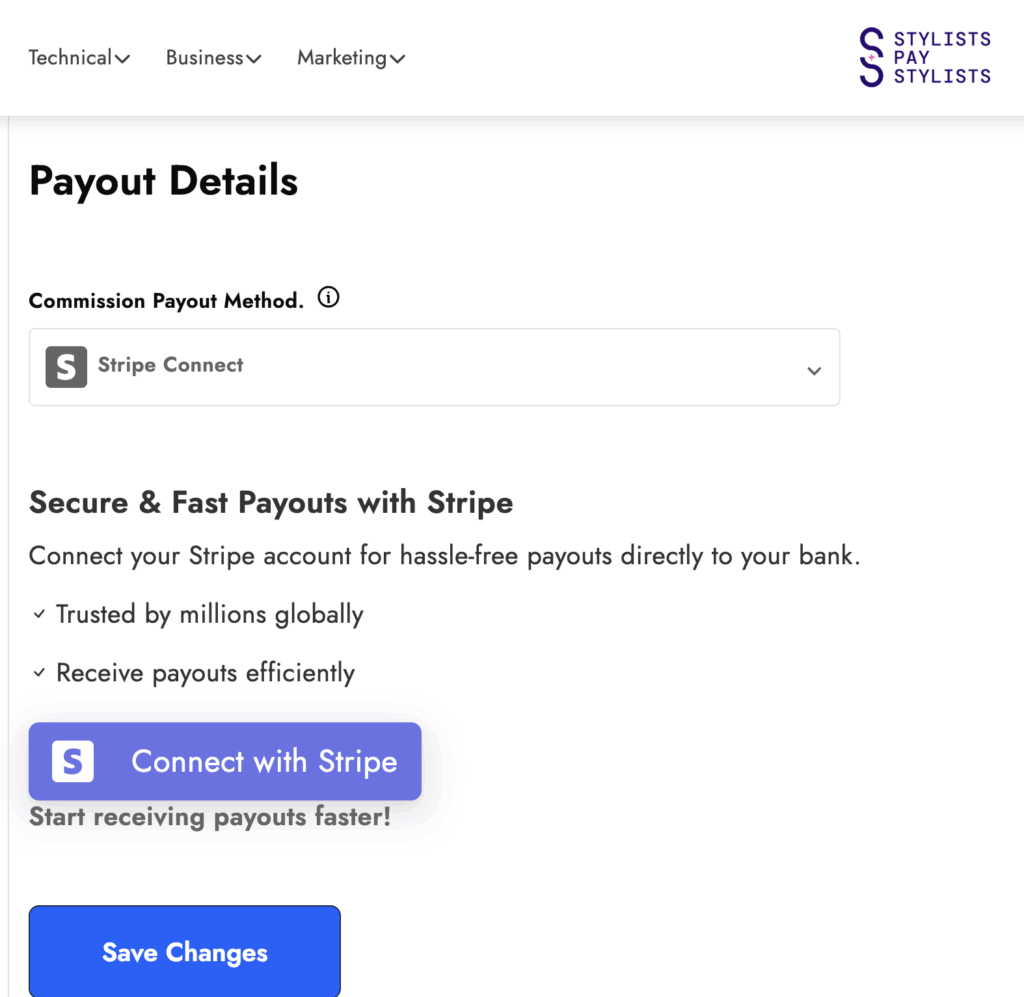
3. Navigate to Payouts -> Payment Details -> Commission Payout Method
-
In your dashboard, look for a tab called Payouts within your settings.
-
Select Stripe Connect under Commission Payout Method.
4. Connect Your Stripe Account
-
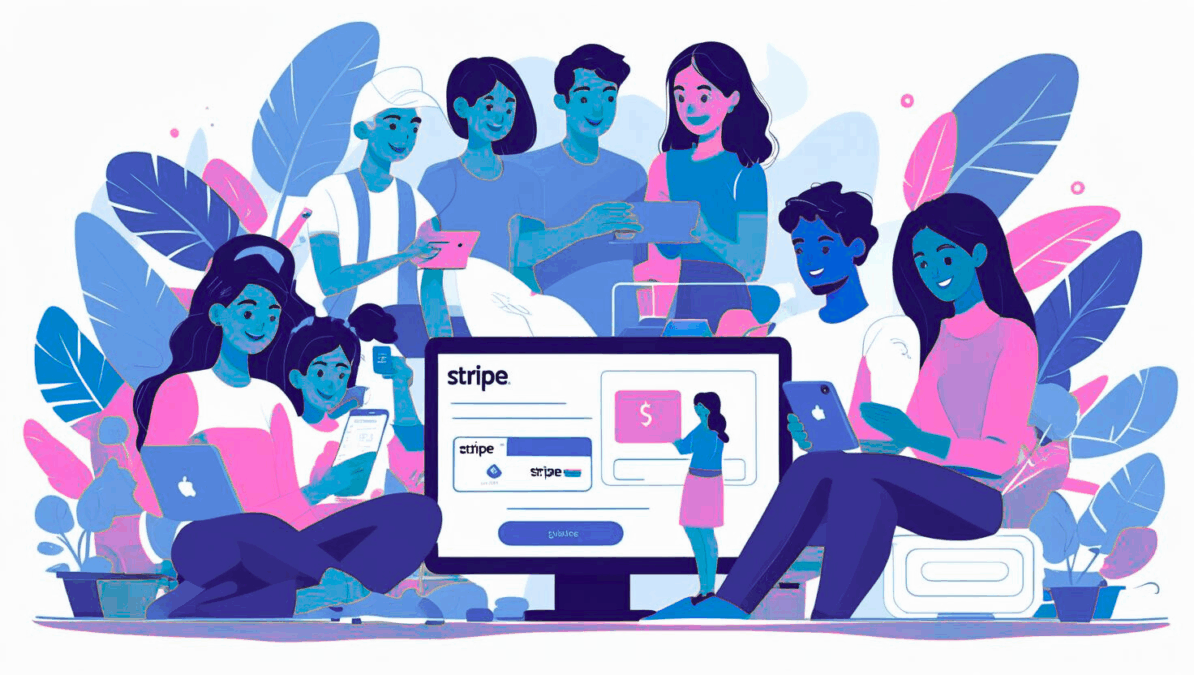
You’ll see a “Connect with Stripe” button.
-
Click it — this will redirect you to the Stripe onboarding flow.
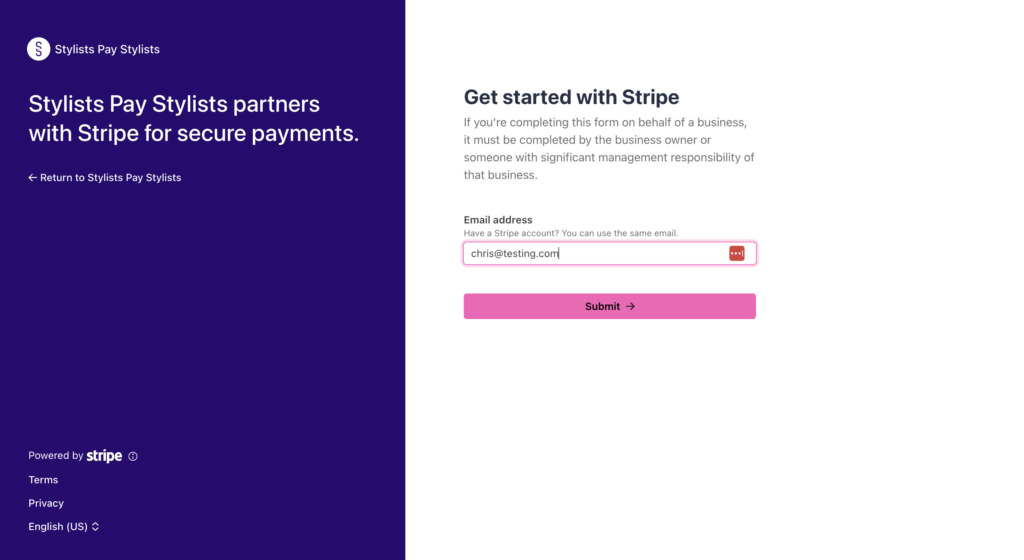
On the Stripe setup page:
-
Enter your email address.
-
Choose whether to create a new Stripe account or connect an existing one.
-
Fill in your business details, such as:
-
Type of business (individual/sole proprietor is fine for stylists).
-
Bank account or debit card for payouts.
-
Verification documents (e.g., government-issued ID).
-
-
Click Submit and allow Stripe to redirect you back to Stylists Pay Stylists.
5. Confirmation
Once Stripe onboarding is complete:
-
You will be redirected back to your dashboard.
-
You should now see a message like “Your Stripe account is connected”.
-
You’re ready to receive payouts when orders are processed.
💡 Notes
-
Payouts: Stripe handles payouts automatically according to their payout schedule (typically 2–7 business days).
-
Fees: Stylists Pay Stylists may charge a platform commission. Stripe also takes a processing fee (usually 2.9% + $0.30 per transaction).
-
Updates: You can update your Stripe account info anytime via the same Payment Settings area.
❓Troubleshooting Tips
| Issue | Solution |
|---|---|
| Don’t see “Connect with Stripe” | Ensure you’re logged in as a vendor and not a customer |
| Stripe page won’t load | Disable browser extensions or try a different browser |
| Payment not showing after sale | Ensure your Stripe account is fully verified |
| Need to disconnect account | You can do this from the Stripe dashboard under “Authorized Applications” |
If you’re still having trouble or the button doesn’t appear, feel free to contact our support team by emailing us at support@stylistspaystylists.com.